
Digital Images in Tourism: The Secret to Making the Most of Your 2026 World Cup Experience
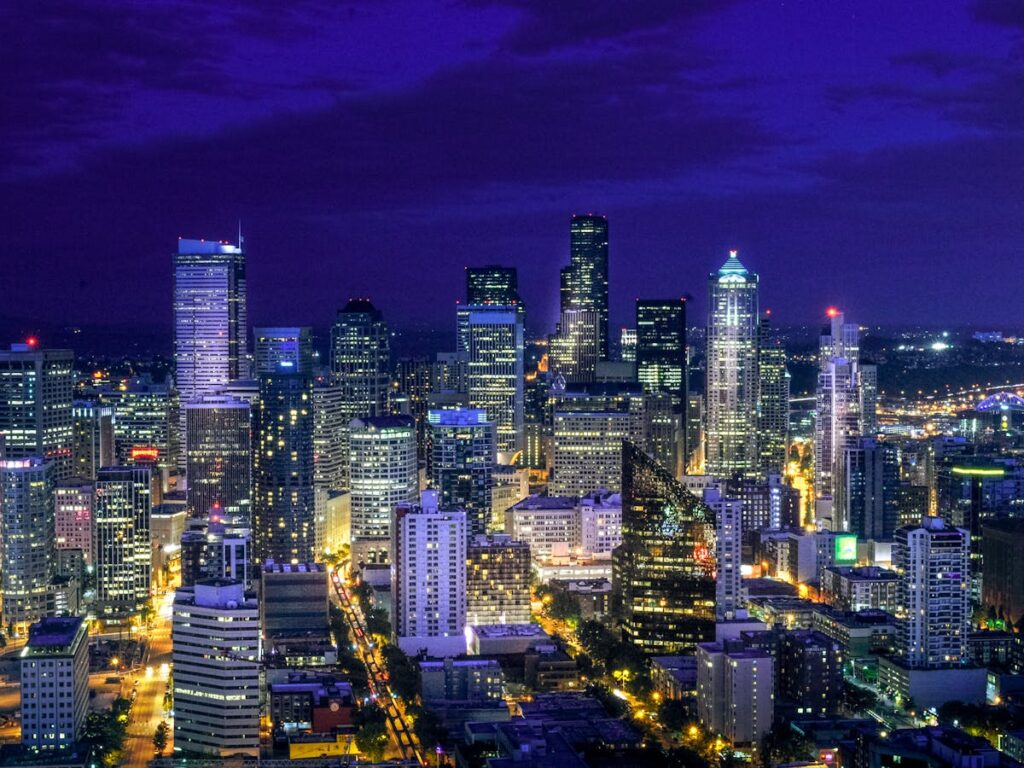
🌍🇺🇲Experience the 2026 World Cup: ➡️ Book a Scenic and Urban Day Trip from Seattle to Vancouver and explore breathtaking views along the way!
Digital Images in Tourism: The Secret to Making the Most of Your 2026 World Cup Experience
Technical Reading:
Your travel photos can either create unforgettable memories or ruin your experience—choose wisely.
Imagine you’ve just arrived at MetLife Stadium in New York for the opening match of the 2026 World Cup. Your camera is in your pocket, the crowd is cheering, and the historic moment is right in front of you. You take the shot… then wait… and wait… It’s not uploading to social media. The connection is slow, the file is too large, and you miss the moment. This is not a hypothetical scenario; it’s the reality for millions of travelers who neglect to optimize their travel photos before they leave.
In an era where 44% of travelers in Europe and North America use AI to plan their trips, one crucial question remains: how can we ensure that digital images in tourism become a gateway to unforgettable experiences during the 2026 World Cup, instead of a roadblock?
Why Optimizing Photos Matters for Travelers: The Real Danger of Large Files
When we talk about digital images in tourism, we’re not just referring to the beauty of the image, but its performance. Imagine these scenarios:
🔴 Nightmare Scenario 1: Slow Loading During Peak Times
During the 2026 World Cup, over 5 million fans are expected to flood host cities: the USA, Canada, and Mexico. The internet networks in hotels, cafes, and airports will be under immense pressure. If your photos are 5-10MB each, you won’t be able to:
- Share moments instantly on Instagram or TikTok
- Send photos to your family via WhatsApp
- Upload them to the cloud for safekeeping
🔴 Nightmare Scenario 2: Running Out of Storage
Your phone’s camera may capture hundreds of photos and videos each day. Without compressing your travel photos, you’ll run out of space by the second day, and you’ll see the dreaded alert: “Not enough space to take more pictures.”
🔴 Nightmare Scenario 3: Incompatible Photos on Booking Sites
When you try to book a tour or excursion through an app, the platform asks you to upload a profile photo or a document image. The file format isn’t supported, or it’s too large, and your transaction fails, causing you to miss out on booking the tour.
📊 The Harsh Reality (Table)
| Problem | Result | Solution |
|---|---|---|
| 8MB photo takes 30 seconds to load on 4G | You miss sharing moments instantly. | Convert to WebP, reducing size to 1MB. |
| PNG file not supported in booking platform | Upload fails. | Convert PNG to WebP for travel images. |
| 500 photos during your trip take up 4GB | You run out of storage space quickly. | Compress by 80% to save space. |
Practical Tips for Converting Travel Photos: Ready-Made Solutions That Save Your Trip
The good news: You don’t need to be a tech expert. The solutions are simple and, most importantly, mostly free.
🛠️ Solution 1: ToolloopAI – Your Smart Travel Companion
ToolloopAI isn’t just a tool, it’s your digital wallet for photos. It allows you to:
- Convert PNG to WebP with one click, reducing file size by up to 80% without losing visible quality.
- Batch compress travel photos—upload up to 50 photos at once and compress them in seconds.
- Seamlessly convert between all supported formats (JPEG, PNG, WebP, SVG, AVIF, PDF).
💡 Pro Tip: Before you head to the 2026 World Cup, spend just 10 minutes converting your entire photo album to WebP format using ToolloopAI. You’ll be amazed at how much space you save!
🛠️ Solution 2: CloudConvert – For Advanced Needs
If you require higher precision or are a professional photographer, CloudConvert is your trusted option. This tool:
- Supports over 200 file formats.
- Is ISO 27001 certified for data security.
- Allows you to manually adjust quality levels (from 0 to 100).
🛠️ Quick Additional Tools (Comparison Table)
| Tool | Main Feature | Best For | Free Plan |
|---|---|---|---|
| TinyImg | Full local compression (total privacy) | Travelers concerned with photo privacy | Unlimited |
| Squoosh | Visual comparison before/after | Amateur photographers | Unlimited |
| Convertio | Converts SVG to WebP with vector quality | Logos and graphic design | Limited |
Before and After – The Real Impact of Photo Optimization (A Real-Life Story)
Ahmed, a young man from Casablanca, traveled to the 2022 World Cup in Qatar. On the first day alone, his phone’s memory was filled with photos and videos. He had to delete entire apps and messaging apps just to keep snapping pictures. On the third day, he failed to upload his ticket photo to the stadium entry system because the image was too large for the security app.
The result: He was delayed by 45 minutes and lost his prime seat in the stadium.
Had he optimized his photos, Ahmed could have:
- ✅ Compressed all photos before traveling, saving 80% of storage.
- ✅ Converted ticket and document photos to WebP in advance.
- ✅ Uploaded and shared moments seamlessly, even with weak connections.
The difference between two travelers may simply be the use of a smart photo converter.
Step-by-Step Guide to Converting Photos (Even for Beginners)
📍 Step 1: Convert PNG to WebP for Travel Photos
Why? The WebP format, developed by Google, combines the quality of PNG (or JPG) with a file size reduction of 25-35%.
How?
- Go to ToolloopAI.com
- Select “Image Converter”
- Upload your PNG photos (you can upload up to 20 at once)
- Choose “WebP” as the target format
- Click “Convert,” then “Download All”
📍 Step 2: Compress Travel Photos for Listings
Before uploading any photo to a booking site (Airbnb, Booking, Expedia):
- Use TinyImg for local compression (without uploading your files to external servers).
- Set the compression quality to 80%—an ideal balance between file size and clarity.
- Ensure the final image size is under 1MB.
📍 Step 3: When to Use WebP/PNG/JPEG/PDF/SVG/AVIF – Which Format to Choose?
| Format | Best Use in Tourism |
|---|---|
| WebP | Regular photos (landscapes, people, food)—default choice |
| JPEG | Photos for social media uploads—high compatibility |
| PNG | Logos and images requiring transparent backgrounds |
| SVG | Maps and charts—adapts to any screen size |
| AVIF | Latest format, best compression and quality—though not widely supported |
| Documents (flight tickets, hotel bookings, visas) |
📍 Step 4: Simple Tips for Mobile Photo Optimization
- Before your trip: Activate “Save Space” or “Optimize Storage” in your camera settings.
- While traveling: Shoot in HEIC format if you have an iPhone (it saves 50% of space).
- After shooting: Use Google Photos to automatically compress photos when uploading to the cloud.
What Photo Conversion Tools Can’t Do (Don’t Be Fooled!)
To be fully transparent, there are limits that no conversion tool can overcome:
❌ 1. They Can’t “Create” Quality That Doesn’t Exist
If your original photo is blurry or low-resolution, the conversion won’t magically make it high quality. It maintains quality, but doesn’t improve it.
❌ 2. Excessive Compression Destroys Detail
Compressing a photo by 95% makes the file very small, but fine details (like distant crowd faces in stadiums) will vanish. Use smart compression (80-85%) instead of extreme compression.
❌ 3. Not All Tools Are Safe
Some free conversion tools keep copies of your photos on their servers. Avoid uploading sensitive personal images (passports, credit cards) to tools you don’t fully trust. Use TinyImg for local processing, or CloudConvert (ISO 27001 certified) for sensitive files.
FAQs (What Every Traveler Asks Before the 2026 World Cup)
Q: Does converting PNG to WebP affect image quality on phone screens?
A: No, the difference is imperceptible to the naked eye on phones and tablets. You may only notice a slight difference when zooming in at 400% or printing at a large size.
Q: How many images can I convert for free daily?
A: ToolloopAI allows 50 conversions per day for free. TinyImg has no limits. CloudConvert allows 25 conversions daily for free users.
Q: What if my photo is larger than 50MB?
A: Some tools have a file size limit. In this case, use desktop software like ImageOptim (for Mac) or FileOptimizer (for Windows) to handle large files.
Q: Can I convert multiple formats at the same time?
A: Yes, most modern tools support batch processing. You can upload PNG, JPG, and PDF files together and convert them all to WebP at once.
Conclusion: Your Photos = Your Memories. Don’t Neglect Them.
Digital images in tourism aren’t a luxury; they’re a necessity. In a world where everything moves quickly, and while the three host cities (USA, Canada, Mexico) race to host the biggest event in history, be the smart traveler who stays ahead of the problems with solutions.
Always remember:
- ToolloopAI to convert PNG to WebP easily and compress travel photos in high quality.
- CloudConvert for professional and advanced conversions.
- TinyImg for total privacy and security.
Don’t let a large file or an unsupported format ruin your historic moments. Prepare your phone before you pack your bag, and let the 2026 World Cup be an event you share with the world smoothly and professionally.
Last Updated: March 2026 – Aligned with Google’s latest search algorithm updates and user experience standards.
R Hallou | SEO Expert and Writer at ToolloopAI. ToolloopAI specializes in generating and optimizing images using artificial intelligence for websites and individuals looking for high-quality photos to use in any activity. Visit www.toolloopai.com.
One Comment