How to Convert Photos Automatically: Mastering Efficiency
How to Convert Photos Automatically: Mastering Efficiency with Toolloopai.com
Let’s be honest. In the digital age, “a picture is worth a thousand words” has evolved into “a picture is worth a thousand files.” As a professional photographer, e-commerce manager, or even a savvy hobbyist, you’re drowning in images. You have RAW files from a shoot, JPEGs for the web, PNGs needing transparent backgrounds, and HEIC files from iPhones that won’t open on Windows. Manually converting, resizing, and optimizing each one is a soul-crushing, time-sucking task that steals hours from your week.
This is where the power of automation becomes non-negotential. And not just any automation, but intelligent, AI-driven automation that doesn’t just change file types but enhances your workflow. In this comprehensive guide, we will explore exactly how to convert photos automatically with Toolloopai.com, a platform that is revolutionizing how professionals handle image assets. We’ll move beyond simple conversion to explore batch processing, AI-enhanced editing, and seamless integration into your existing pipeline. By the end, you’ll possess the knowledge to eliminate repetitive tasks, ensure consistency, and unlock new levels of creative scalability.
The Modern Image Problem: Why Manual Conversion Is No Longer Viable
We live in a multi-platform, multi-device, multi-format world. A single image often needs to exist in several incarnations:
· A high-resolution TIFF for archival purposes.
· A compressed, watermarked JPEG for social media previews.
· A PNG with a transparent background for a website logo overlay.
· A WebP format for blazing-fast site loading speeds.
· A specific dimension and DPI for print materials.
Doing this manually for dozens or hundreds of images is a recipe for errors, inconsistency, and burnout. The risks are tangible:
· Inconsistency: Slight variations in resizing or compression.
· Human Error: Saving over originals, choosing the wrong format.
· Massive Time Drain: Time spent dragging, dropping, and exporting is time not spent on strategy, creation, or client work.
Enter the solution: automated photo conversion. This isn’t just about a “batch save as” function. Modern tools like Toolloop AI integrate artificial intelligence to make intelligent decisions during the conversion process.
Introducing Toolloopai.com: Beyond Basic Conversion
Toolloopai.com is not merely a file converter. It is a cloud-based, AI-powered media processing platform designed for scale and intelligence. While its core function allows you to convert photos automatically—supporting a vast array of formats like JPG, PNG, WebP, AVIF, BMP, TIFF, and HEIC—its true power lies in what happens during that conversion.
Think of it as an automated production line for your images. You set the parameters once, and the system intelligently applies them to hundreds or thousands of files, often improving the images in the process.
Core Principles of Toolloop’s AI Engine:
· Intelligent Compression: It doesn’t just reduce file size; it uses algorithms to preserve perceptual quality, a critical factor for web performance (Core Web Vitals).
· Context-Aware Resizing: AI can understand the image content, allowing for smart cropping or resizing that protects important subjects.
· Batch Processing at Scale: The cornerstone of automation. Upload a folder, not just a file.
· Format Optimization: It recommends the best format (e.g., WebP for web, PNG for graphics) based on the intended use case.
Your Step-by-Step Guide: How to Convert Photos Automatically with Toolloopai.com
Let’s transition from theory to practice. Here is a detailed, step-by-step walkthrough of using Toolloop to automate your image workflow.
Step 1: Accessing the Platform and Initial Setup
1. Navigate to Toolloopai.com in your browser. No heavy software download is required—this is a cloud-based tool.
2. Create an account. This typically allows you to manage your processing history, access higher batch limits, and utilize advanced features.
3. Familiarize yourself with the dashboard. You’ll typically see options like “Convert,” “Compress,” “Resize,” and more specific AI tools.
Step 2: Uploading Your Images for Batch Processing
· Click on the primary tool, often labeled “Convert Images” or “Batch Converter.”
· Use the drag-and-drop interface or the file browser to upload. The key here is to upload your entire folder or select multiple files. This is the “automatically” in “convert photos automatically.”
· Supported formats are extensive. You can safely mix RAW files (.CR2, .NEF), standard web formats, and even PDFs containing images.
Step 3: Configuring Your Automated Conversion Settings
This is where you define the rules of your automation. Set it once, apply to all.
· Target Format: Select your desired output format (e.g., Convert all to WebP for my blog, or to JPEG for client delivery).
· Quality & Compression Slider: Adjust the balance between file size and visual fidelity. For web use, 75-85% is often optimal.
· Resize Dimensions: Optionally set a maximum width/height (e.g., “1920px on the longest side”). You can choose “maintain aspect ratio” to prevent distortion.
· Advanced AI Options (Where the Magic Happens):
· Background Removal: Convert a product photo to PNG by automatically stripping the background during conversion.
· AI Enhancer: Check a box to let the AI subtly improve sharpness, color balance, and contrast as it converts.
· Rename Output Files: Use a pattern (e.g., Product-{001}.jpg, {original-name}_ web, jpg
Step 4: Executing the Process and Managing Output
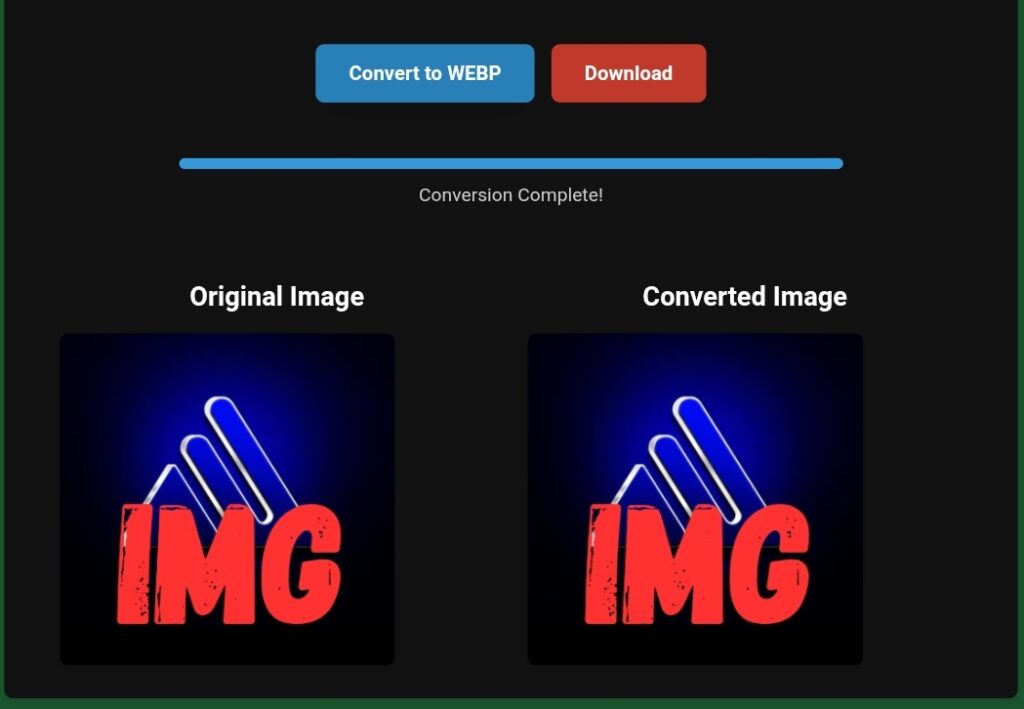
· Click “Convert,” “Process,” or “Start.” The platform will now automatically convert your photos according to your preset recipe.
· A progress bar will show the status. With AI tasks, this might take slightly longer per image but saves hours in manual editing.
· Once complete, you can preview individual results to ensure quality.
· Finally, download your entire batch as a single ZIP file. Your original files remain untouched in their source location.
Real-World Applications: Where Automated Conversion Transforms Workflows
Use Case 1: The E-commerce Entrepreneur
· Problem: 500 new product photos from a manufacturer are in TIFF format, with inconsistent backgrounds and huge file sizes.
· Toolloop Automation: Batch upload → Set output to JPEG/WebP → Apply AI background removal → Resize to 1200x1200px → Apply mild AI enhancement for consistency.
· Result: In under an hour, you have 500 web-ready, white-background product images perfectly formatted for your Shopify store, with improved load times.
Use Case 2: The Professional Photographer
· Problem: Delivering a wedding gallery with 2000+ RAW (.CR3) files. Clients need universally accessible JPEGs, and you want a separate set of watermarked previews for social media.
· Toolloop Automation:
· Batch 1: Convert all RAW to high-quality JPEGs for the main client gallery.
· Batch 2: Convert the same RAW files to smaller JPEGs (1500px width) and automatically overlay a semi-transparent logo watermark in the bottom corner.
· Result: Two perfectly prepared, consistent galleries generated automatically, saving 8-10 hours of manual Lightroom exporting.
Use Case 3: The Web Developer & SEO Specialist
· Problem: A client’s website has 300 images in PNG/JPG format, causing slow page loads and hurting SEO performance (Largest Contentful Paint).
· Toolloop Automation: Upload the entire images/ folder → Convert all to next-gen AVIF/WebP format → Apply intelligent compression to hit a <150kb target.
· Result: Drastically improved website speed, enhanced Core Web Vitals scores, and a direct positive impact on Google search rankings.
Advanced Techniques: Leveraging AI for More Than Just Format Change
To truly master how to convert photos automatically with Toolloopai.com, explore its adjacent AI tools within the conversion pipeline.
1. AI-Powered Batch Editing: Use the “AI Image Enhancer” tool before conversion. Correct color casts, reduce noise in low-light shots, and upscale older images en masse, then pipe the improved versions into your format converter.
2. Creative Style Transfer: Convert a batch of vacation photos and apply a consistent “film grain” or “watercolor” AI filter during the process for a unique stylistic gallery.
3. Automated Organization: Combine the platform’s capabilities with cloud storage (like Dropbox or Google Drive) via API or Zapier. Set up a rule: “Any image added to this folder is automatically converted to WebP and saved to another folder.” This is true hands-off automation.
Common Pitfalls and How to Avoid Them (The Expert’s Checklist)
Even with powerful automation, strategic oversight is crucial.
· Mistake #1: Destroying Originals. Solution: Always keep a backup of your original, high-resolution files. Automation processes copies, not your only archive.
· Mistake #2: Over-Compression. Solution: Always do a test batch of 5-10 images. Download, inspect them on different screens, and check file sizes before processing 1000 images.
· Mistake #3: Ignoring Color Profiles. Solution: For critical print work, ensure the platform supports and respects embedded color profiles (sRGB, Adobe RGB) during conversion to maintain color accuracy.
· Mistake #4: Not Using Naming Conventions. Solution: Use the built-in rename function. {date}-{category}-{seq}.jpg is far more manageable than IMG_9834.jpg.

Frequently Asked Questions (FAQ) About Automatic Photo Conversion
Q1: Is it safe to upload my photos to Toolloopai.com?
A:Reputable platforms like Toolloop use secure (HTTPS) connections and often have clear privacy policies stating that uploaded files are deleted from their servers after a short period (e.g., 24 hours). For highly sensitive work, always review the privacy policy and consider using the tool for non-confidential assets first.
Q2: Can I convert HEIC photos from my iPhone automatically?
A: Absolutely, This is one of the most common use cases. Upload your batch of HEIC files, select JPG or PNG as the output format, and Toolloop will handle the rest, making them viewable on any device.
Q3: How does AI improve the conversion process over a simple converter?
A:A simple converter changes the file container. An AI-enhanced converter can optimize the content inside. It can compress more efficiently without quality loss, intelligently sharpen details lost in compression, remove backgrounds, and correct colors, making the final output superior.
Q4: Are there limits on batch size or file size?
A:Most online tools, including Toolloop, have limits based on your account tier (Free, Pro, Business). Free tiers may allow 10-20 images at a time, while paid tiers allow thousands and larger individual file sizes. Check the pricing page for specifics.
Q5: What’s the difference between lossy and lossless conversion?
A:When you convert photos automatically, you choose this. Lossy (JPEG, WebP) reduces file size by permanently discarding some data—good for photos on the web. Lossless (PNG, TIFF) compresses without any quality loss—essential for graphics, logos, and archival masters. Toolloop allows you to choose the method per batch.
Conclusion: Embracing the Automated Creative Workflow
Learning how to convert photos automatically with ToolloopAI.com is more than a technical skill—it’s a professional paradigm shift. It represents the move from being a manual laborer in the digital darkroom to becoming a strategic director of your creative output. You reclaim the most valuable resource you have: time.
The platform’s integration of core conversion with AI-powered enhancement places it at the forefront of modern content operations. Whether you’re an individual creator looking to streamline your process or a business aiming to scale visual content production consistently, the principles remain the same: define the rules, leverage intelligence, and execute at scale.
Stop spending your hours on repetitive tasks. Start using technology to handle the mundane, so you can focus on the meaningful. Begin by taking a single project this week—your last blog post’s images, a product catalog, or a personal photo album—and run it through an automated workflow on Toolloopai .com. Experience the efficiency, appreciate the consistency, and witness firsthand how intelligent automation can become your most powerful creative ally.